
Editing PR titles & descriptions
A PR’s title and description start as its commit’s subject and body. You can rewrite either in place: the edit is saved to the PR’s prs file, never to the commit, so the reviewed repo is untouched. The copy buttons then give you exactly the text the real GitHub PR should have, project context included.
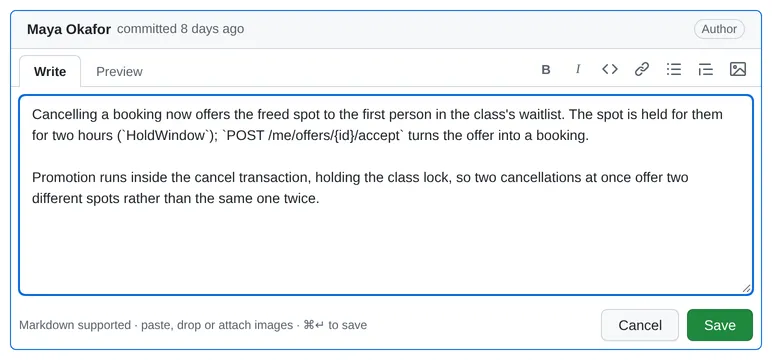
Editing
Section titled “Editing”- Title: Edit beside the title turns it into an input. Enter saves, Esc cancels.
- Description: the pencil in the description’s header (or … → Edit) opens a Write / Preview editor with a small toolbar (bold, italic, code, link, list, quote; ⌘B / ⌘I / ⌘K), prefilled with the current description. ⌘/Ctrl+Enter saves, Esc cancels (asking first if you changed something).
- Back to the commit message: saving text identical to the commit message clears the override instead. An overridden field shows edited ▾ (“Edited locally; the commit message is unchanged”), whose menu shows the commit’s version and has Revert to commit message.
- If the file changes while you edit (an agent rewrote the description): an untouched editor just follows it; one with your changes keeps them and offers Load it / Keep mine.
- Drafts survive switching tabs and commits, but not a reload (the browser warns before you leave).
An agent can do the same by writing title: / body: into the prs file, or with PUT …/pr; the UI shows it live.
Images
Section titled “Images”PR descriptions, stack notes and the project intro can show images: a diagram, a screenshot, a before and after.
In any of their editors, paste an image (a screenshot from the clipboard), drop an image file onto it, or use
the image button in the toolbar. Each one is uploaded into the project’s assets/ folder, and its markdown goes
in at the cursor:
- While it uploads, an
![Uploading …]()placeholder holds its place and Save waits. - PNG, JPEG, GIF, WebP and SVG, up to 5 MB. Anything else is refused with a message under the editor
(
Couldn't add notes.png: the file isn't a PNG image …), and its placeholder is removed. - The same image added twice is stored once: files are named by their content.
- An agent adds one with
local-review asset add <project> <file>, which prints the same markdown (CLI). - Images on the web (
) work as in any markdown. Comments showassets/images too, but have no upload.
Where the files live, and why they’re never deleted: Images.
Seeing an image up close
Section titled “Seeing an image up close”Click an image (the cursor is a magnifier over the ones you can) to open it in a viewer over the page, scaled to fit the window, with its title, or else its alt text, as the caption. That works wherever markdown is shown: descriptions, stack notes, the project intro, comments, and an editor’s Preview.
- Click the image (or the magnifier button) to see it at 100%, its full size, centred on the point you clicked. Scroll or drag to move around it; click again to fit it back to the window. An image that already fits at 100% has nothing to zoom to.
- ← / →, or the arrows at the sides, step through the other images in the same description, note or comment,
wrapping round at the ends; the top corner shows which one you’re on (
2 / 4). - Esc, the × button or a click outside the image closes it, and focus goes back to the image. Images can be focused with Tab and opened with Enter, too.
- Images in links keep the link. A badge or a screenshot that links somewhere else opens its link, as on GitHub.
An image linked to itself (
[](assets/….png)) opens the viewer; ⌘/Ctrl- or shift-click it to open the link instead.
While the viewer is open, the other keyboard shortcuts are off, so j / k don’t
move you to another PR behind it.
Project context
Section titled “Project context”On the Conversation tab, above the description, a compact Project context box shows the project intro and this PR’s stack note, each with Copy and Edit. Edit opens the same editor as the description (Write/Preview, the toolbar, ⌘↵ saves, Esc cancels, and a “changed elsewhere” notice). Collapse the box with its chevron; that’s remembered (in localStorage, for every PR and project). Project overview goes to the homepage.
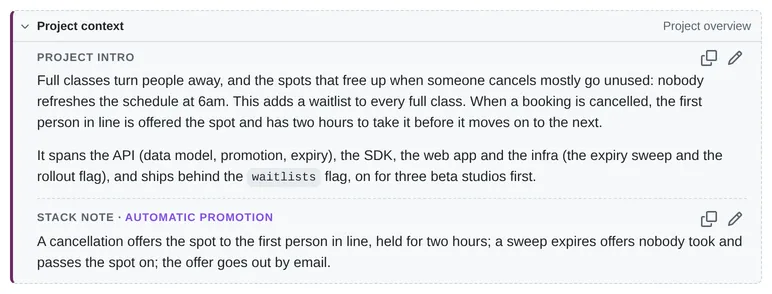
- The project intro is
description:at the top ofproject.yaml: context for the whole effort. - The stack note is
description:on the stack: how this stack relates to the others.
Saving writes just that one field into project.yaml, keeping its comments and formatting. The UI never writes text
you didn’t type: nothing is generated. Details: How the UI edits project.yaml.
Copying text for the real PR
Section titled “Copying text for the real PR”| Button | Copies |
|---|---|
| The copy icon beside the title | The plain title (no #n). |
| The copy icon in the description header | The description’s raw Markdown. |
| … → Copy title + description | The title, a blank line, then the body. |
| Full body (beside the copy icon), or … → Copy full PR body | What the real PR’s body should be (below). |
The full body is the project intro, a blank line and the stack note (if there is one), then a blank line, ---, a
blank line, and the PR description. Missing parts are left out:
Why this effort exists, …          ← the project intro
First of three stacks: …           ← the stack note
---
What this PR changes, and why.     ← the PR description
The separator is CONTEXT_SEPARATOR in shared/prText.ts, and local-review plan composes
exactly the same text, so what an agent publishes matches what you copied.